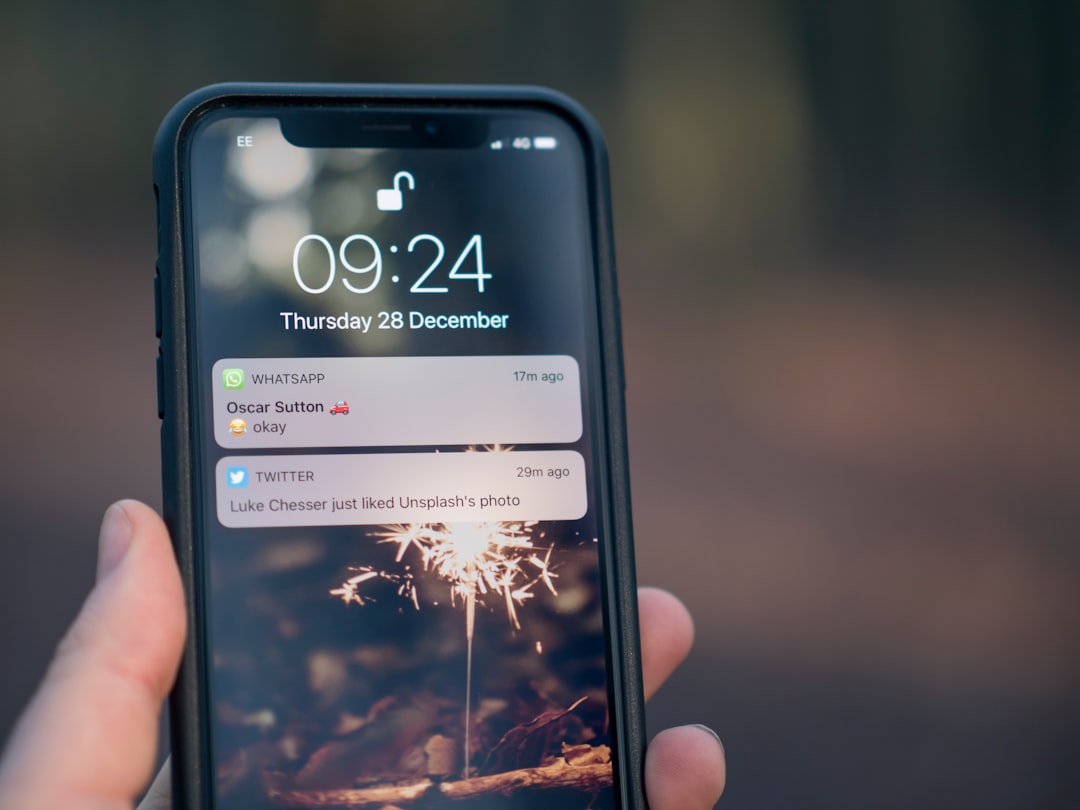
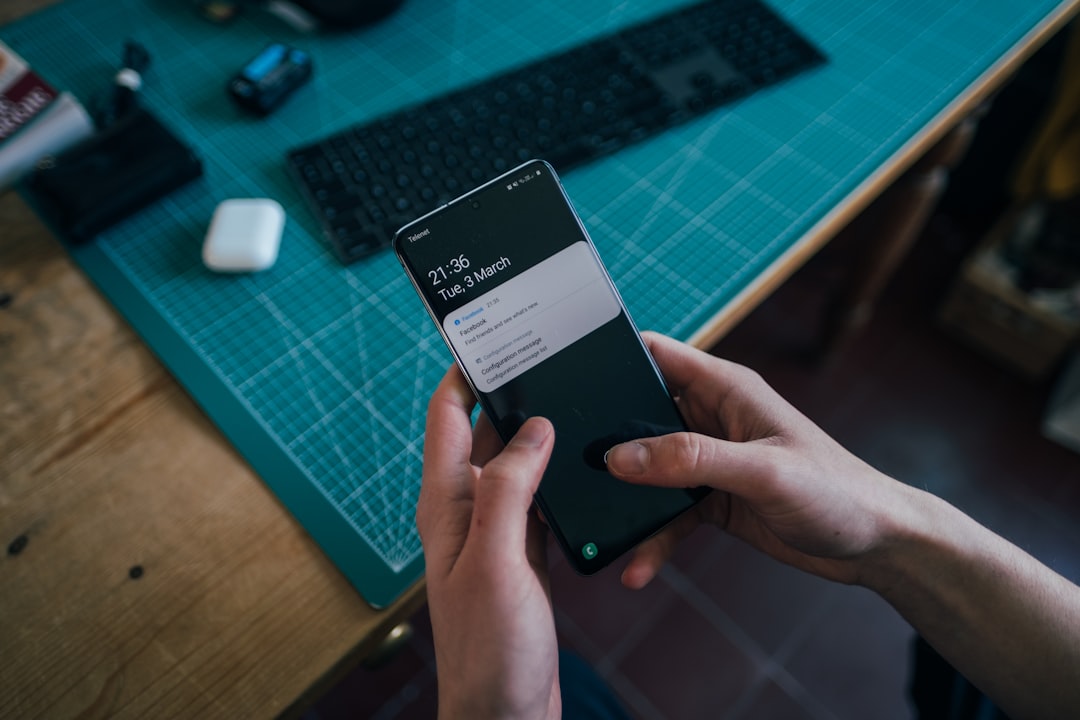
How to write announcements in a group chat clearly and briefly

How to write announcements in a group chat clearly and briefly: a simple template, a checklist before sending, examples for trips and events, common mistakes, and calm ways to make a message stand out.
a close up of a cell phone on a table
Photo: Dimitri Karastelev

How to write announcements in a group chat clearly and briefly is not a minor detail—it’s a way to avoid losing time, money, and agreements. When there are dozens of messages a day in a chat, long text without the point just gets skipped. In the end, one important announcement turns into a chain of follow-up questions: “what exactly?”, “when?”, “who is responsible?”. Below is a simple way to write so that you are noticed the first time.

The good news: you do not need to be a “writing expert.” It is enough to learn how to quickly separate the main point from the extra details, and then build a message in a clear template. This is useful for neighborhood chats, school threads, family arrangements, and any shared plans.

Why important messages get lost in a group chat

The flow of messages has become too dense. People open the chat between tasks, read from the lock screen, on the go, or during a break. If an announcement starts with a long introduction, a joke, or a story about “why this happened,” the main point just never gets reached. So important messages get lost in a group chat not because nobody cares, but because attention is short.

A typical situation: someone writes about collecting money, then in the same message mentions the meeting time, then adds a request to bring documents, and then a couple more details. The reader sees a wall of text and puts off replying. That is where the feeling comes from that important announcements disappear in the chat.

This is especially noticeable now in shared chats for buildings, classes, clubs, and trips. The more people there are, the more important one simple rule becomes: one message — one task.

How to write a message in a group chat so that people reply

A short structure works: what happenedwho it concernswhat needs to be doneby whenwhere the details are.

For example:

Household chat: “Tomorrow from 10:00 to 12:00 the water will be shut off in entrance 3. This concerns all apartments. Please stock up on water this evening.”

School chat: “For Thursday’s excursion, parental consent forms are needed by 18:00 on Wednesday. I’ll send the form below. If you haven’t seen it, please check.”

Neighbors’ chat: “On Sunday the elevator will be out of service for 2 hours. If you have a stroller or heavy bags, it’s better to plan your trip out in advance.”

This kind of message is easier to read to the end because it does not require decoding. The person immediately sees what happened and what is expected. That is the easiest way to understand how to write a message in a group chat so that people reply.

Briefly: checklist before sending an announcement

Before sending, check yourself against five points:

  • the main point is in the first sentence;
  • it is clear who the message concerns;
  • there is one action: reply, come, pay, confirm;
  • a deadline or time is specified;
  • there are no extra details that distract.

If you want how to highlight the main message in a group chat, start with the point itself. Do not hide the request in the middle of the text. Do not mix three topics in one message. And do not try to explain everything at once.

A useful test: read your text aloud in 10 seconds. If the meaning does not fit into a short spoken version, the message is almost certainly too long for a chat.

How to discuss a trip or event in a group chat without confusion

Confusion usually appears where people discuss the time, money, list of participants, and meeting place all at once. It is better to break this into steps.

Trip: first write the route and date, then the cost, then who has already confirmed participation, and only after that the practical details. For example: “We are meeting on Saturday at 9:00 by the station. The travel cost is 300 rubles. Please confirm participation by Friday 20:00.”

Event: first the goal, then the time and place, then a list of what to bring. For example: “We meet at 18:30 in the park by the entrance. Bring water and comfortable shoes. If you are coming, write ‘+’ by 16:00.”

Shared planning: one person records the final version. This is especially important if the topic is active and everyone is writing at the same time. Then the chat does not fall apart into fragments.

If you are thinking about how to discuss a trip or event in a group chat without confusion, the rule is simple: one message should help make one decision.

How to forward important information in a group chat so it gets noticed

A forwarded message by itself does not explain why it matters. So it needs a short comment. Not “see this,” but “this is important today” or “important for those going to the meeting tomorrow.”

A convenient formula is:

Short headline + why it matters + one next step.

For example: “Important: the meeting time has been moved to 17:30. Please check who can make it.” That way the message does not look like random noise and does not get lost among other replies.

If you need a related skill—how to keep your thought short and not spread into multiple points—this article may help: How to write briefly and clearly in work messages.

Common mistakes in announcements and how to fix them

The first mistake is a long introduction. People often start with explanations, although a chat needs results. The second is several topics in one message. The third is no deadline. The fourth is emotion instead of action. The fifth is forwarding without explanation.

Another common problem: the message was sent in the evening, when everyone is tired, but a reply is expected immediately. If the question is not urgent, it is better to wait for a more convenient moment. Then people will read you more carefully.

This is especially noticeable in family and school threads. If you need a close look at exactly this kind of case, see Rules for communication in a parents’ chat. It clearly shows how to reduce noise and not lose what matters.

In short, people do not read messages to the end out of spite. Usually it is just hard for them to quickly understand what is being asked of them.

PING block: how to make the signal clear from the first message

At PING, we focus on a clear signal: the user should quickly understand what is happening in the conversation. That is also a good habit for group chats—write so that the meaning is clear right away.

When a message is short, specific, and calm, it is easier to notice and easier to act on. You do not need to make the tone stronger or write more. It is enough to remove the extra parts and leave one clear step.

If you want your announcement not to sink in the flow, keep one simple formula in mind: the main point first, details later, one request per message.

Frequently asked questions

How do I write a message in a group chat so that people reply?

Start with the point, indicate who the message concerns, what needs to be done, and by when.

How do I highlight the main message in a group chat?

Put the main point in the first sentence and shorten the text to 2–4 short lines.

How do I discuss a trip or event in a group chat without confusion?

Separate the topics: date, place, list of participants, money, and responsible person should each be clear on their own.

How do I forward important information in a group chat so it gets noticed?

Add a short comment: what it is, why it matters, and what next step is needed.

Why does nobody read messages to the end in a group chat?

Most often because the text is too long, it covers several topics, or there is no clear action.

Was this article useful?

Your feedback helps make PingBook more precise.

Share this article

Related articles

Следующие истории PingBook

All articles

Why a message is sent but not delivered: what to do

Why a message is sent but not delivered: a simple breakdown of the reasons, a quick verification checklist, and a calm action plan for weak connections, a frozen chat, and slow conversations.

person holding phone displaying stop complaining text screengrab
Photo: Omar Prestwich
Why a message is sent but not delivered: what to do

A message can get stuck while sending at the worst possible moment: on the subway, on the road, in a parking lot, in an elevator, or simply anywhere the connection is shaky today. That is why the question why a message is sent but not delivered has become more noticeable now: we write faster, more often, and not always with stable internet. The good news is that most of the time this is not a breakdown, but a temporary issue with the connection, settings, or the app itself. Let’s go through it calmly: how to understand the cause, what to check in a minute, and what to do without panic.

Why a message can get stuck more often now than before

Most often it is not one major failure, but a combination of small factors. The internet may disappear for a second and then come back. The phone may save battery and slow down background processes. The app may lag after a long chat, photo, or video. And if you send a message while moving, the risk is higher: the network switches between base stations, and delivery does not always work on the first try.

That is why phrases like message stuck while sending what to do or what to do if a chat loads very slowly sound so common today. People have not become worse at writing — the conditions have simply become less stable.

Quick diagnosis: 5 checks in one minute
  • Check the network. Open a website or another app: if everything loads slowly, the issue may be with the internet.
  • Look at the sending icon. If an indicator is spinning next to the message, it is still going to the server.
  • Try a short message without an attachment. This makes it easier to understand whether the file or the chat itself is the problem.
  • Switch the connection. Sometimes a temporary switch between mobile data and Wi‑Fi helps.
  • Restart the app. If the chat is frozen on one message, it may sometimes just need a restart.

This is a basic message sending checklist: it does not solve everything, but it quickly shows where to look for the problem.

Typical scenarios: when the problem is the network, and when it is not

If why a chat gets stuck on one message happens only on the move, the cause is almost certainly the connection. If a message sends at home but not outside, the mobile network is probably unstable or battery-saving mode is limiting background activity. If the chat works only on Wi‑Fi and not on mobile data, it is worth checking the app’s internet access settings and traffic limits.

Another common scenario: text sends, but a photo does not. This is not rare, because a heavy file needs a more stable channel. In that case, the question is not only why a message is sent but not delivered, but whether the channel has enough speed and stability.

What to do step by step if a message will not send
  1. First, do not press send repeatedly.
  2. Check whether there is any connection at all: a website, a map, any page.
  3. If everything is slow, switch to another type of connection and send the message again.
  4. Remove the attachment and try sending text only.
  5. If the text sent but the file did not, send the file separately later.
  6. Restart the app if it is clearly frozen.

If messages do not send on a weak internet connection, another tactic helps too: write shorter. A short phrase will work better than a long text with several photos. This is especially important when what to do if a chat works only on wi fi and not on mobile is no longer theory, but your real situation.

Common mistakes that make sending even more broken

People often repeat the same mistake: they press “send” many times and create a queue of duplicates. Another mistake is reattaching a heavy photo without checking the connection first. Or deleting the message right away, thinking it has “broken completely.” In fact, sometimes you only need to wait for a stable signal and send again.

If why a photo is not sending in a message happens regularly, check the file size, network quality, and available phone storage. Sometimes the problem is not the chat, but the fact that the device is too busy or overloaded with background processes.

Checklist for a weak connection: how to send a message on the first try

Here is the most practical scenario if the connection is unstable:

  • write briefly;
  • do not attach a file if text is enough;
  • send important information separately from secondary details;
  • if possible, wait for a more stable connection;
  • do not switch back and forth between networks every 10 seconds;
  • keep a calm tone: with a bad connection, clarity matters more than word count.

This is where a simple idea helps: the clearer the message, the easier it is for it to get through even a weak channel. At PING, we focus on clear statuses: the user should quickly understand what is happening to the message. This is especially important when response time is limited and the connection behaves unpredictably.

When the message status does not change: what it means

If you see that a message is not arriving, it helps to understand the difference between statuses separately. Sometimes it has already left your phone, but has not yet reached the recipient. Sometimes it got stuck earlier, at the sending stage. And sometimes the problem is not on your side at all, but in a temporary delivery delay. You can read more about this in the article What the statuses sent, delivered, and read mean in messages.

What else to check if the problem repeats every day

If delays have become regular, check not only the connection, but also the phone’s general settings: power-saving mode, background restrictions, and the app’s internet access. Sometimes it also helps to look at related symptoms — for example, how notifications behave. If they also arrive late, see Why notifications arrive with a delay: main reasons. If notifications arrive quietly or without sound, the article Notifications arrive without sound: what to do will help.

And if you want to turn on the basic checks right away and remove common restrictions, this guide will help: How to turn on notifications on your phone: a simple guide.

The main thing is not to confuse a temporary delay with a real failure. If a message is sent but not delivered, start with the network, then check the phone, and only then look for a more complex cause.

If the message still did not go through, check the connection and resend it. Calmly, step by step: short text, stable network, one retry — and only then additional settings.

If the problem repeats every day, that is a reason to look deeper. But in most cases, everything is solved without panic and without extra steps.

Frequently asked questions

Why is a message sent but not delivered?

Most often, it is due to weak internet, a temporary network outage, phone restrictions, or a frozen app. The message may already have left the device, but has not yet reached the server or recipient.

What should I do if a message is stuck while sending?

First check the connection, then try sending a short text without an attachment. If that does not help, restart the app and try again later.

Why do messages not send on a weak internet connection?

With weak internet, long messages, photos, and videos are unstable to send. The network may break for a second, and the sending process does not complete.

What if a chat works only on Wi‑Fi and not on mobile data?

Usually this means the mobile network is unstable, the app has background access restrictions, or Wi‑Fi works better in transit. It is worth checking the settings and trying another network.

How can I tell where the message sending breaks down?

Check the network, try a short message without a file, restart the app, and see whether the failure repeats only on one type of connection.

PingBook

Следующие истории PingBook

Why message notifications arrive without text

Why message notifications arrive without text: a breakdown of the causes, a quick check checklist, and a calm action plan. We explain when the text is hidden on purpose and when the problem is a delivery delay.

person holding phone
Photo: Jamie Street

If why message notifications arrive without text is your question today, you’re not alone. Often it’s not a malfunction but a privacy setting: the phone hides the content on the lock screen so others can’t see your conversation. Sometimes the text disappears after a system update, a mode change, or an accidental tap in settings.

The good news is simple: in a couple of minutes, you can tell whether the text is intentionally hidden, being cut off by settings, or the message is simply arriving late. No panic, no long searches.

Why messages appear without text on the screen

Usually there is more than one reason. The device may show only the sender’s name and the fact that something happened if hidden preview, content protection on the locked screen, or a mode that conceals notification details is enabled. After updates, these settings sometimes change without being noticed.

There is another scenario too: the message has already been delivered, but only a short line appears on the screen without details. That makes it seem as if the phone is not showing new messages right away, even though they arrived on time.

Quick diagnosis: 5 checks in a minute
  1. Look at the lock screen: is any text shown there at all.
  2. Open settings and check message previews.
  3. Look for privacy, focus, or “do not disturb” modes.
  4. Check whether content display is disabled for a specific app.
  5. Compare behavior on the locked and unlocked screen.

If you need a basic starting point, first check the general system settings: notification display, lock screen access, and app permissions. That is faster than hunting for a rare cause directly in the conversation.

When the text is hidden, and when the message really arrives later

It is important not to mix these up. If the alert appears on time but without text, the issue is display. If it only arrives after opening the app, the cause is more often background restrictions, power saving, or an unstable connection. In that case, the content is not hidden — it is delayed.

A typical example: a person sees only blank pushes all day, then opens the app in the evening and finds several new messages at once. In that case, delivery delay and background operation are checked separately.

Common settings mistakes that make text disappear

The most common mistake is assuming the cause is the same on every device. In reality, one place has preview hidden, another has the screen locked, and a third has a separate setting for a specific app. Another common reason is that privacy mode is enabled on purpose, but simply forgotten.

Sometimes the user looks for the problem only in the app itself, when the issue is the phone’s system behavior. Some devices hide content on the locked screen by default until you allow text display manually.

What to do: bring the text back or keep it hidden

If you want text in notifications, check previews, the lock screen, and privacy settings. If peace of mind and personal data protection matter more, you can leave everything as is — that is a normal mode, especially when there are other people nearby.

The main thing is to choose the behavior consciously. There should not be a situation where you keep wondering why an empty message arrives even though you did not change anything.

In Ping, we focus on a clear signal: the user should quickly understand what is happening in the conversation. That helps not only with faster replies, but also with calmer control over what is visible on the screen.

If the problem is not only the text: related checks

If some other notifications disappear along with the text, check sound, silent modes, and delivery delay. Sometimes these symptoms go together: first the phone hides the content, then the message itself starts arriving late.

It is also useful to look at related materials on the topic: how to turn on notifications on the phone, why they arrive late, and what to do if notifications arrive without sound. That helps separate screen settings from a general delivery problem.

PING block: how to leave only the signal you need

If you want short, clear notifications without noise or extra details, it helps to set them up so you do not have to guess from fragments of text. When the signal is clear, replies come faster, and conversations are less tiring.

That is why calm notification setup is not a small thing, but part of convenient digital life. Check once what is shown on the screen, and then you no longer get distracted by accidents.

Short conclusion

If messages arrive without text, first check previews, the lock screen, and privacy modes. If the content is hidden on purpose, that is normal. If the message arrives only after opening the app, look for delivery delay and background restrictions. No need to panic: in most cases, the problem is solved in a few minutes.

Frequently asked questions

Why do message notifications arrive without text?

Most often, the text is hidden because of lock screen settings, preview settings, and privacy mode. Sometimes this is enabled after a system update or changed accidentally in the app settings.

What should I check first if text in a notification is not shown?

First, check the lock screen, message preview, silent modes, and the settings for the specific app. These are the most common places where text is hidden.

Is this a notification problem, or are the messages arriving later?

If the alert arrives on time but without text, the issue is display. If it appears only after opening the app, there is probably a delivery delay or background restriction.

Can I keep notifications without text only for some apps?

Yes, usually you can. You can keep text visible for one app and hidden for another. That is useful if some messages should be seen immediately while others are better hidden.

Where should I look if some other notifications disappear along with the text?

First check preview, the lock screen, sound, and delivery delay. If several types of alerts are affected at once, the issue may be in the phone’s general settings.

PingBook

Следующие истории PingBook

Notifications arrive without sound: what to do

Why notifications arrive without sound and what to check first: phone modes, volume, focus, battery saving, and app settings. A simple no-panic checklist.

person holding black android smartphone
Photo: Jonas Leupe
Notifications arrive without sound: what to do

If notifications arrive without sound what to do is not a theoretical question. A missed courier call, a reply from a loved one, a verification code, an urgent work message — all of this is easy to miss when the phone stays silent at the exact moment you need it. Today the problem is more common: people turn on focus modes, battery saving, disable extra alerts, and then do not notice that important notifications have become quiet or disappeared altogether.

Below is a calm, no-panic breakdown: what usually breaks sound, what to check first, and where people most often go wrong.

In short: what most often blocks notification sound

Most often the reason is simple: silent mode is on, notification volume is too low, Do Not Disturb is active, a focus mode has kicked in, or the app has been given overly strict restrictions. Sometimes the sound is there, but it is turned off only for a specific app.

If notifications arrive without sound, do not start by reinstalling everything. First check the basics: phone mode, volume, permissions, and the app’s background behavior.

Why notifications started arriving quietly or without sound

Today a phone does more than ring and show a banner. It decides for itself what counts as important and what can wait. Because of this, why notifications are not heard on the phone is no longer just a sound question, but also a question of how the system works.

Background restrictions, battery saving, separate notification channels, lock screen settings, and privacy settings all affect this. After updates, some parameters may reset or change without you noticing. As a result, push notifications arrive, but without a sound signal — and it feels as if the phone has “broken.”

Checklist: what to check on the phone first
  1. Check the sound mode. The phone may be in silent mode or set to the minimum volume specifically for notifications.
  2. Turn off Do Not Disturb. This mode often mutes everything except selected calls and alerts.
  3. Check focus or sleep mode. They can quietly disable alerts at night, during meetings, or while traveling.
  4. Check vibration. Sometimes sound is off and vibration is not set either — then a notification is easy to miss.
  5. Open the app’s own settings. Sound may be disabled there, or a very quiet alert type may be selected.
  6. Send a test notification. This is the easiest way to tell whether the issue is system-wide or limited to a specific app setting.

If you want a practical starting point, first read How to turn on notifications on your phone: a simple guide — it breaks down the basic check path in a useful way.

If messages arrive only when I open the app

This is a common situation. The user does not see a live alert, but rather a “catch-up” delivery: open the app — and notifications immediately start pouring in. Usually the reason is that the system has limited background activity or the app has been pushed too aggressively into battery saving.

This is especially noticeable after updates: permissions change, background processes become stricter, and notifications may disappear after an app update not completely, but selectively. Then it seems that everything works except the most important part — timely alerts.

If why messages arrive only when I open the app is your case, check background permission, battery optimization, and the app’s notification settings. Sometimes it is enough to remove an extra restriction and restart the phone.

Common mistakes that make sound disappear

Here is what people do most often:

  • turn on call sound but forget notification sound;
  • leave Do Not Disturb active after work or overnight;
  • do not notice that sound is turned off separately for one app;
  • assume the lock screen will show everything important, although this depends on settings;
  • do not recheck permissions after an update.

If the phone does not show notifications on the lock screen, it is not always a failure. Often it is just a separate privacy setting: banners are hidden, but the notifications themselves still arrive quietly or only in the notification shade.

How to restore notification sound in 5 steps
  1. Disable the interfering mode. Check Do Not Disturb, focus, and silent profile.
  2. Raise notification volume. Not the overall volume, but the one that controls alerts.
  3. Check the app settings. Make sure sound is enabled there and a normal alert type is selected.
  4. Allow background activity. Especially if notifications arrive late or only after opening the app.
  5. Restart the device and test again. This helps if the system froze after an update or mode change.

If the sound still disappears after that, the problem is no longer one setting, but a combination of settings. Then it helps to return to the basic checklist and go through it calmly, without rushing.

PING block: when a clear signal and a fast reply matter

At PING, we focus on a clear signal: the user should quickly understand what is happening in the conversation. This matters especially when a notification is not just a sound, but a way not to miss an agreement, a reply, or a deadline.

When communication is easy to follow, there is less chance of missing an important message and more chance of replying on time.

What to do next if the sound still does not return

Save this checklist and check your phone today, before the problem becomes a habit. If the issue looks more like a delay than a sound problem, read Why notifications arrive with a delay: main reasons. If you use an iPhone, see Why notifications do not arrive on iPhone: main reasons. If you want to understand whether a message went through and where a reply got stuck, this will help: What the sent, delivered, and read statuses mean in messages. And if you want to quickly check whether the issue is related to account access, it is useful to see How to sign out of your account on all devices.

The main thing is not to look for one “magic button.” In most cases, the sound comes back after calmly checking 3–5 settings.

Frequently asked questions

Why do notifications arrive without sound?

The most common causes are silent mode, low notification volume, Do Not Disturb, focus mode, battery saving, or separate app settings.

What should I do if notifications arrive without sound?

First check notification volume, phone modes, app permissions, restart the device, and send a test notification.

Why do messages arrive only when I open the app?

Usually the app is restricted in the background, and the system delays push notifications until the app is opened.

Why does the phone not show notifications on the lock screen?

This is often a separate lock screen or privacy setting, not a phone malfunction.

Why can’t I hear notifications on the phone even though the sound is on?

Because call sound and notification sound are set separately, and the app itself may have its own alert settings.

PingBook

Следующие истории PingBook