Why message notifications arrive without text
Why message notifications arrive without text: a breakdown of the causes, a quick check checklist, and a calm action plan. We explain when the text is hidden on purpose and when the problem is a delivery delay.
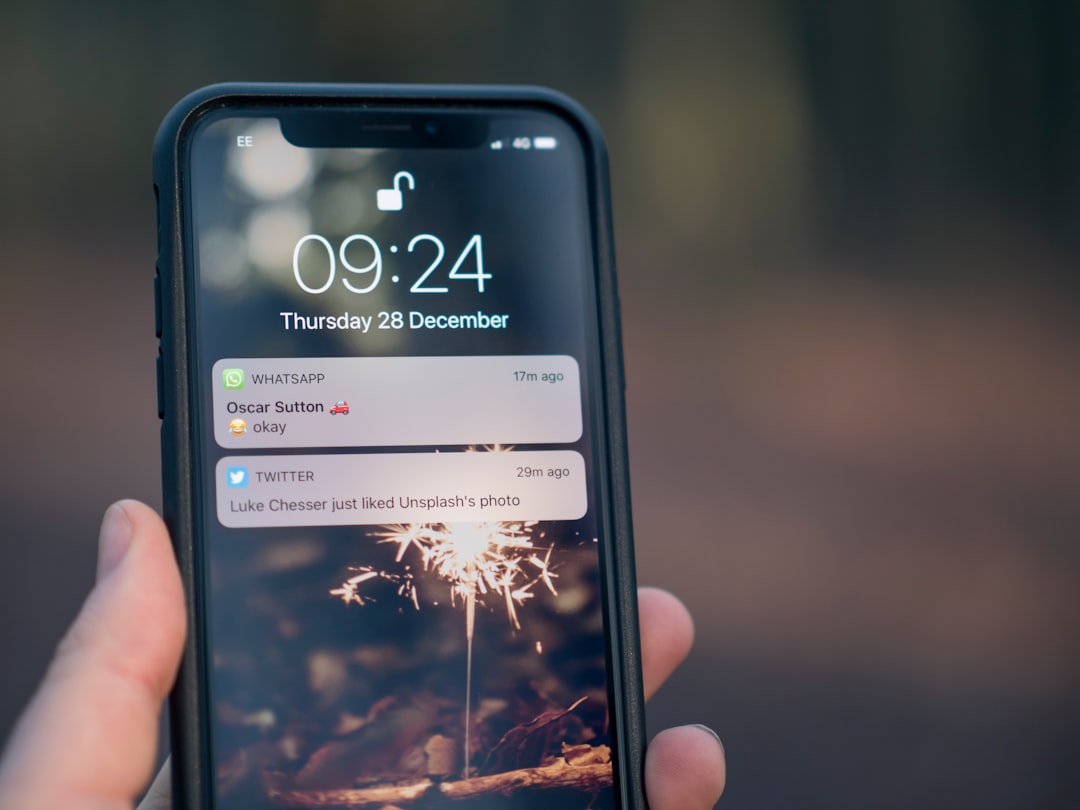
If why message notifications arrive without text is your question today, you’re not alone. Often it’s not a malfunction but a privacy setting: the phone hides the content on the lock screen so others can’t see your conversation. Sometimes the text disappears after a system update, a mode change, or an accidental tap in settings.
The good news is simple: in a couple of minutes, you can tell whether the text is intentionally hidden, being cut off by settings, or the message is simply arriving late. No panic, no long searches.
Why messages appear without text on the screen
Usually there is more than one reason. The device may show only the sender’s name and the fact that something happened if hidden preview, content protection on the locked screen, or a mode that conceals notification details is enabled. After updates, these settings sometimes change without being noticed.
There is another scenario too: the message has already been delivered, but only a short line appears on the screen without details. That makes it seem as if the phone is not showing new messages right away, even though they arrived on time.
Quick diagnosis: 5 checks in a minute
- Look at the lock screen: is any text shown there at all.
- Open settings and check message previews.
- Look for privacy, focus, or “do not disturb” modes.
- Check whether content display is disabled for a specific app.
- Compare behavior on the locked and unlocked screen.
If you need a basic starting point, first check the general system settings: notification display, lock screen access, and app permissions. That is faster than hunting for a rare cause directly in the conversation.
When the text is hidden, and when the message really arrives later
It is important not to mix these up. If the alert appears on time but without text, the issue is display. If it only arrives after opening the app, the cause is more often background restrictions, power saving, or an unstable connection. In that case, the content is not hidden — it is delayed.
A typical example: a person sees only blank pushes all day, then opens the app in the evening and finds several new messages at once. In that case, delivery delay and background operation are checked separately.
Common settings mistakes that make text disappear
The most common mistake is assuming the cause is the same on every device. In reality, one place has preview hidden, another has the screen locked, and a third has a separate setting for a specific app. Another common reason is that privacy mode is enabled on purpose, but simply forgotten.
Sometimes the user looks for the problem only in the app itself, when the issue is the phone’s system behavior. Some devices hide content on the locked screen by default until you allow text display manually.
What to do: bring the text back or keep it hidden
If you want text in notifications, check previews, the lock screen, and privacy settings. If peace of mind and personal data protection matter more, you can leave everything as is — that is a normal mode, especially when there are other people nearby.
The main thing is to choose the behavior consciously. There should not be a situation where you keep wondering why an empty message arrives even though you did not change anything.
In Ping, we focus on a clear signal: the user should quickly understand what is happening in the conversation. That helps not only with faster replies, but also with calmer control over what is visible on the screen.
If the problem is not only the text: related checks
If some other notifications disappear along with the text, check sound, silent modes, and delivery delay. Sometimes these symptoms go together: first the phone hides the content, then the message itself starts arriving late.
It is also useful to look at related materials on the topic: how to turn on notifications on the phone, why they arrive late, and what to do if notifications arrive without sound. That helps separate screen settings from a general delivery problem.
PING block: how to leave only the signal you need
If you want short, clear notifications without noise or extra details, it helps to set them up so you do not have to guess from fragments of text. When the signal is clear, replies come faster, and conversations are less tiring.
That is why calm notification setup is not a small thing, but part of convenient digital life. Check once what is shown on the screen, and then you no longer get distracted by accidents.
Short conclusion
If messages arrive without text, first check previews, the lock screen, and privacy modes. If the content is hidden on purpose, that is normal. If the message arrives only after opening the app, look for delivery delay and background restrictions. No need to panic: in most cases, the problem is solved in a few minutes.
Read also
Frequently asked questions
Why do message notifications arrive without text?
Most often, the text is hidden because of lock screen settings, preview settings, and privacy mode. Sometimes this is enabled after a system update or changed accidentally in the app settings.
What should I check first if text in a notification is not shown?
First, check the lock screen, message preview, silent modes, and the settings for the specific app. These are the most common places where text is hidden.
Is this a notification problem, or are the messages arriving later?
If the alert arrives on time but without text, the issue is display. If it appears only after opening the app, there is probably a delivery delay or background restriction.
Can I keep notifications without text only for some apps?
Yes, usually you can. You can keep text visible for one app and hidden for another. That is useful if some messages should be seen immediately while others are better hidden.
Where should I look if some other notifications disappear along with the text?
First check preview, the lock screen, sound, and delivery delay. If several types of alerts are affected at once, the issue may be in the phone’s general settings.
Was this article useful?
Your feedback helps make PingBook more precise.