How to Protect Your Messages in a Messenger App
A simple breakdown of how to protect your messages in a messenger app: chat password, hidden notifications, two-factor protection, checking active devices, and a quick privacy checklist.
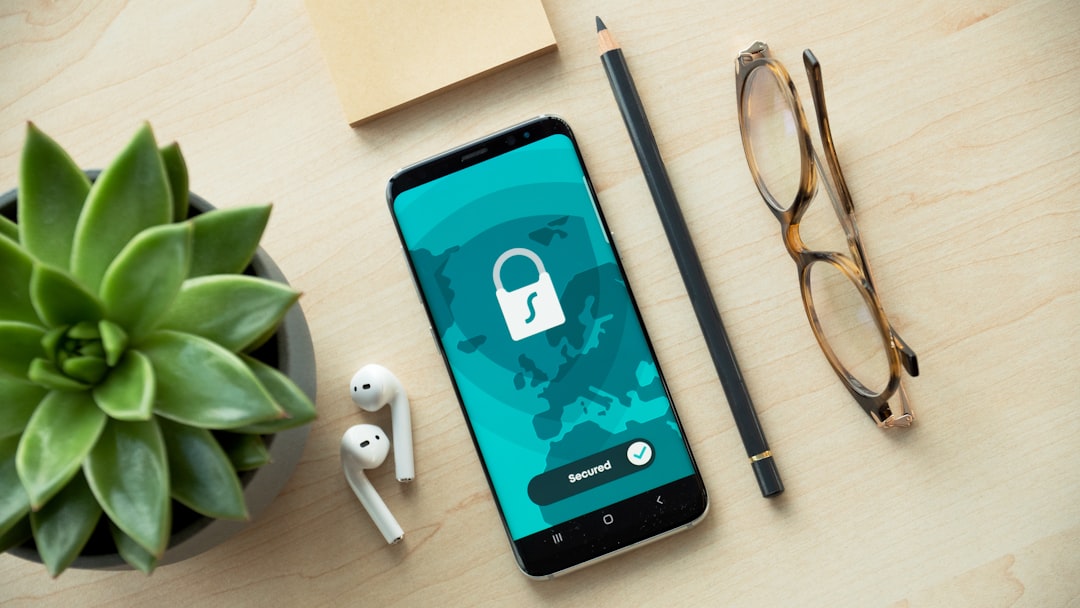
How to Protect Your Messages in a Messenger App
If you want how to protect your messages in a messenger app explained without extra theory, start simple: limit access to your phone, hide notification contents, check account sign-ins, and close extra sessions. Most often, messages leak not because of a “hack,” but because someone can access the screen, notifications, or an already open account. Below is a practical step-by-step guide.
Why your messages can be at risk
The risk to your messages usually comes from four places. First is the phone itself. If it is unlocked, or easy to unlock, someone else can open a chat in seconds. Second are notifications on the screen: they often show the message text, sender name, and part of the context. Third are saved sessions and logins on other devices that were forgotten. Fourth is weak account protection, when a sign-in can be confirmed too easily.
That is why the question who can see my messages in a messenger app depends not only on the app, but also on how your smartphone is set up. Message protection is not one button, but a set of simple actions.
How to set a password for a chat in the app
The most straightforward step is how to set a password for a chat in the app. If the app has a separate chat lock, turn it on for your most private conversations. If there is no such option, set a password or biometric lock for the whole app.
Usually it helps to do this:
- enable sign-in with a PIN, fingerprint, or face;
- set a separate lock for important chats, if available;
- choose a short auto-lock time;
- make sure the app does not open immediately after unlocking the phone without verification.
That way, a chat password helps even if someone else briefly gets your phone.
How to turn off message previews on the lock screen
The next step is how to turn off message previews on the lock screen. This is where leaks most often happen: the phone is on a table, a notification arrives, and the text is visible without opening the app.
Check your notification settings and disable text previews. Ideally, the locked screen should show only a general alert without content. Sometimes it is enough to leave only the sender name, or hide content completely for private chats. This is especially useful if coworkers, children, guests, or anyone else may be near your phone.
If you want to keep convenience, do not turn notifications off completely. It is better to hide only the text than to miss important messages. This keeps your privacy intact while still letting you see incoming alerts.
How to hide messages on your phone from other people
To understand how to hide messages on your phone from other people, you need to protect not only chats, but the device itself. Start with the basics: a strong unlock code, biometrics, auto-lock after a short time, and blocking notification content on the lock screen.
Also check whether messages can appear in pop-up windows over other apps. Those windows are convenient, but they can also reveal text. If the phone is often left unattended, it is better to turn off previews wherever they are enabled.
A simple rule is useful: if someone picks up your phone, they should not be able to see your messages in a few seconds. Phone protection here matters more than a single clever setting in one chat.
How to enable two-factor account protection
Another security layer is how to enable two-factor account protection. This is not for the phone, but for the sign-in itself. Even if someone learns your number or password, an extra code or sign-in confirmation greatly improves protection.
Look for these items in the security settings:
- two-factor sign-in or an additional password;
- confirmation code for new logins;
- a backup recovery method;
- a list of devices where you are already signed in.
If you have any doubts, enable two-factor protection right away. It is one of the most reliable ways to strengthen account protection without complicated steps.
How to sign out of all devices in the app
If you think someone else may still see your messages, check how to sign out of all devices in the app. This is important after losing a phone, sharing account access, or any suspicious sign-in.
Usually, the settings include a list of active devices or sessions. Compare them with the devices you actually use and end everything unnecessary. If you see an unfamiliar device, do not delay. Active sessions are a common reason why access to messages remains even after changing the password.
After signing out of all devices, log back in only on your own. Then immediately check whether you need to change the password, the confirmation code, or restore control over the account.
In short: what to turn on first
If you need a quick privacy checklist, do this:
- Set a lock on your phone and in the app.
- Hide notification text on the lock screen.
- Check for any extra active devices.
- Enable two-factor account protection.
- Turn off extra message previews and pop-ups.
This set covers the most common risks and gives you clear security settings without extra hassle. If you follow the steps one by one, protecting your messages takes little time but noticeably reduces the chance of accidental access.
PING block: how it works in PING
At PING, we focus on a clear signal: the user should quickly understand what is happening in the conversation. This is useful when both privacy and peace of mind matter: less noise, clear notifications, and a quick response to what is important. This approach helps you stay in control of communication and avoid carrying unnecessary details in your head.
If you want a simple approach, remember this formula: protected phone, hidden notifications, verified logins, closed sessions. That is the foundation of calm messaging.
Check your message protection now: open privacy settings, enable a password or biometrics, remove text from the lock screen, and end unnecessary logins.
Read also
Frequently asked questions
Who can see my messages in a messenger app?
The risk is not only in the app, but also in the phone: access to the screen, notifications, unlocking, and already open sessions. If someone can pick up the device or see the screen, they may be able to read part of the conversation.
How can I protect my messages in a messenger app in 5 minutes?
Enable a lock on the phone and the app, hide notification text, check the lock screen, and close extra devices. This covers the most common leak points in just a few minutes.
How can I hide messages on my phone from other people?
You need device-level protection: a code or biometrics, hidden notification text, turning off previews on the lock screen, and checking active devices. A chat password alone is usually not enough.
How do I set a password for a chat in the app?
Look for privacy, security, or specific chat settings. Usually you can enable a password, PIN, biometrics, or auto-lock there. If there is no separate chat protection, protect the entire app.
How do I turn off message previews on the lock screen?
Turn off content previews on the lock screen and leave only a general notification or the sender name. That way, messages will not be visible to random people near your phone.
When should I sign out of all devices in the app?
When the phone is lost, there was shared access, or you suspect someone else signed in. In those cases, you should end all active sessions, change the password, and log in again only on your own devices.
Was this article useful?
Your feedback helps make PingBook more precise.