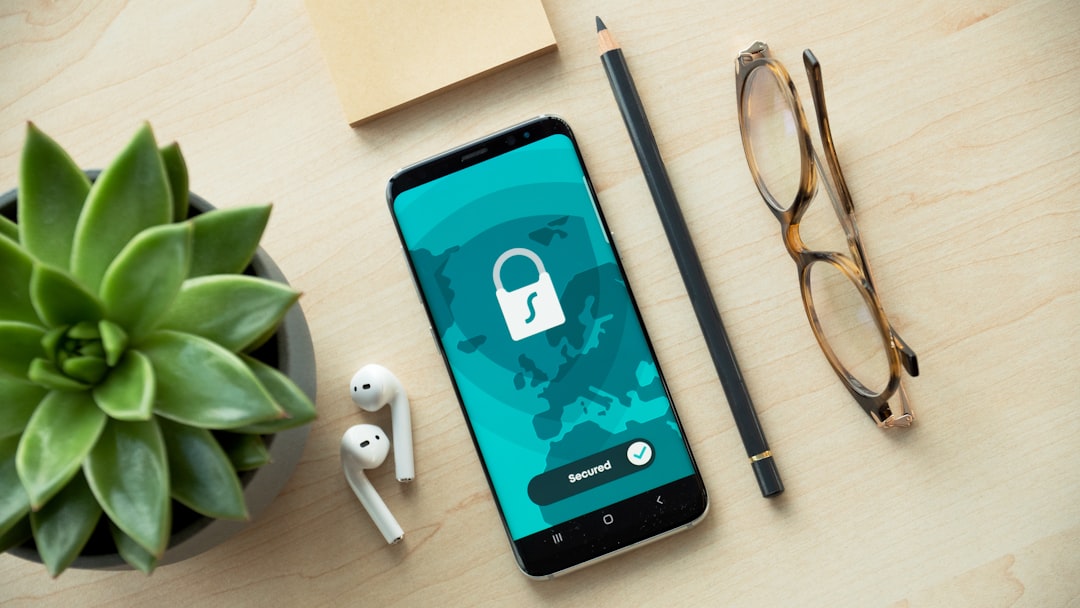
How to Set a Password for Messages
Step by step, we explain how to set a password for messages on Android and iPhone when there is no separate button, and which settings actually help protect conversations.
How to set a password for messages is a question that usually comes up not from curiosity, but from a simple concern for privacy. The good news: in most cases, you can protect not just one message, but an entire chat, app, or phone screen. That is the most reliable way to keep conversations private without unnecessary hassle.
In short: a separate message is rarely protected by a password. More often, people set up app locking, PIN or biometric access, and hide notification content. This gives you better control over who can see what on the screen.
What can be protected with a password in chats
When people talk about protecting conversations, they usually mean not a single message, but one of three levels of protection:
- the entire phone — a passcode, fingerprint, Face ID, or another unlock method;
- a chat app — a separate password or biometrics for entry;
- notification content — hiding message text on the lock screen.
This helps create proper privacy for conversations: even if your phone ends up in someone else’s hands, chats will not open immediately. If you are looking for how to make conversations private, start with these settings.
How to set a password for messages on Android
On Android, the path depends on the phone model and interface, but the logic is usually the same:
- Open the phone settings.
- Find security, privacy, or app protection.
- Enable locking for the required app with a PIN, password, or fingerprint.
- Check whether you can hide notification content on the lock screen.
- If there is a chat-hiding feature, turn it on for the needed conversations.
If you are searching for how to set a password for messages on Android, remember: sometimes there is no separate button specifically for messages. In that case, locking the app itself and the phone screen helps. That already greatly improves protection from others.
Another useful step is to disable message text previews in notifications. Then on the lock screen, only the sender’s name or just the fact that a new message arrived will be visible.
How to set a password for messages on iPhone
On iPhone, protection is also based on access to the device and apps:
- Open Settings and check whether a passcode is enabled.
- Make sure Face ID or another biometric method is set up.
- Go to notification settings and limit previews on the lock screen.
- Check whether you can add extra protection to the app itself, if it supports that.
- Look at Screen Time settings if you need to restrict access to conversations further.
If you need to understand how to set a password for messages on iPhone, most often this means a passcode, Face ID, and hiding notification text. It is a simple and effective set of tools that helps keep conversations out of sight.
How to limit access to chats on a phone if there is no separate password
Sometimes there is no separate feature, and then you can build protection from a few simple steps. This is especially useful if you want to quickly understand how to limit access to chats on a phone without extra setup.
- Set a strong screen lock. It is better not to use a too-simple code.
- Hide notification previews. This keeps other people from seeing message text on the lock screen.
- Enable biometrics. A fingerprint or Face ID is more convenient and safer than a simple password.
- Sign out on someone else’s device if the login was saved.
- Check autofill and saved sessions. Sometimes they are what create extra access.
If you are wondering how to protect conversations from others, it helps to look not only at the chat itself, but at the whole access path: screen, notifications, saved login, backups.
Why conversations remain accessible and how to fix it
Sometimes protection seems to be enabled, but messages are still easy to read. Usually the reason is one of these:
- a too-simple code or the same password across all services;
- message text is shown on the lock screen;
- the phone is too easy for others to unlock;
- the account remains open on another device;
- extra login protection is not enabled in the app.
If you want to understand who sees my messages in the app, check whether you left the device unlocked, whether notifications are open, and whether access is saved on someone else’s phone. The question “how to tell who sees my messages” almost always comes down to access settings, not the message text itself.
To make protection work better, update your password, do not share your unlock code, and do not leave your phone without a lock screen even “for a minute”.
How it works in PING
In PING, we focus on a clear signal: the user should quickly understand what is happening in a conversation. That is why message protection is built so access is convenient for the owner and closed to outsiders. This is especially important when you need both privacy and quick access to important chats.
If you need a clear balance between security and speed, this approach helps you avoid wasting time on extra steps while still keeping conversations under control.
In PING, you can set up access to messages so protection does not interfere with everyday communication, but simply works in the background.
Check conversation protection in PING
If you want to use chats more calmly, start with the basics: check your screen lock, notification hiding, and additional access settings. Then see how it is conveniently arranged in PING.
Read also
Frequently asked questions
How do I put a password on a message?
Usually, you protect not a single message, but access to a chat, app, or phone screen. That is more reliable than trying to find a password for one message only.
How do I set a password for messages on Android?
Open the security settings, enable app locking with a PIN or fingerprint, and hide notification content on the lock screen.
How do I limit access to chats on a phone?
Use a screen lock, biometrics, notification preview hiding, and sign out of the account on other people’s devices.
How can I tell who sees my messages?
Check the lock code, open notifications, saved logins on other devices, and whether message text is visible on the lock screen.
Was this article useful?
Your feedback helps make PingBook more precise.