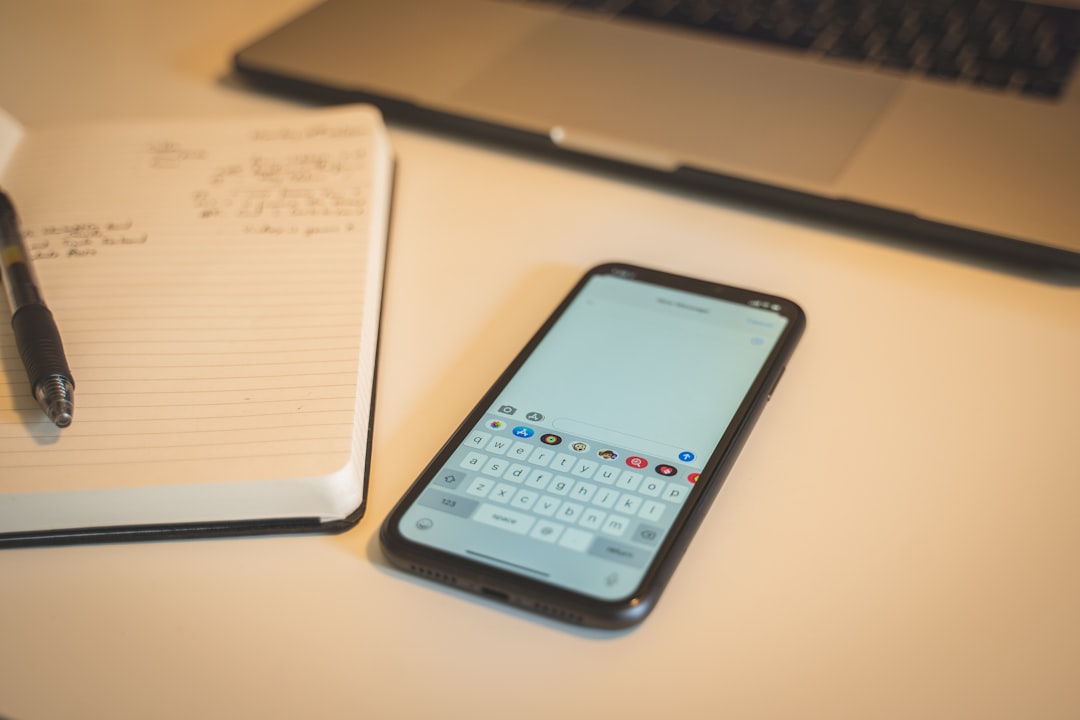
Personal control: how to set up chat notifications
Is the constant noise from parents’ and neighborhood groups making it hard to focus? Here’s how to set up notifications, regain control of your attention, and avoid missing what truly matters.
Personal control: how to set up chat notifications
Your phone is lying on the table, the screen lights up, vibrates, and goes dark again. The parents’ chat is discussing classroom curtain colors, the neighbors’ group is arguing about parking, and the school chat is flooding the feed with follow-up questions. Each notification fragments your attention, even if you do not pick up your phone. The constant stream of noise from group chats is one of the main causes of digital fatigue today. Let’s look at how to restore calm, set priorities, and stop flinching at every “ding.”
In brief: what to do in five minutes
To reduce the load immediately, take three steps. First, turn off sound in all chats that do not require an instant response. Second, divide groups by priority: critical (family, work), informational (school, clubs), and background (hobbies, neighborhood chats). Third, set up “silent mode” so that you receive notifications only from people who are genuinely important right now.
Why group notifications make it hard to focus
The brain spends resources switching context every time we see a message banner. In group chats, whether school conversations or local community chats, the intensity of communication is much higher. We get used to reacting to the signal even when it does not require an urgent response. This creates the illusion of being busy, while productivity actually declines and anxiety grows. It is important to understand that not every message in a group chat needs to be read immediately.
Start with a diagnosis: which groups really matter
Try a simple experiment. At the end of the day, look through your notification history. Which groups took up most of your attention? Note how many were useful and how many were simply noise. Divide chats into three groups: those where you need to know everything immediately; those you can check a couple of times a day; and those you can read once a week. This will help you understand what to configure first.
How to set up chat notifications: a step-by-step process
Setting up phone notifications is your protection against information overload. Open the messenger settings or your device’s system settings. Go to the “Notifications” section for the specific app. You can disable vibration, remove banners from the lock screen, or completely turn off sound for certain groups. Remember that menu names may differ depending on the system version, but the principle is the same: give yourself complete control over what reaches your attention.
Settings for parents’, school, and neighborhood groups
Parents’ groups often require only selective attention. Turn off their sound, but leave banners enabled if you are waiting for an important schedule announcement. In neighborhood chats, it is enough to check messages at the end of the day—there are rarely critical tasks there. It is best to limit school conversations during working hours so their noise does not interfere with your own activities.
Silent mode: how not to miss anything important
Silent mode does not mean isolation. It is a filtering method. To avoid missing an urgent message from loved ones, add them to an “allow list” or use your system’s priority settings. The key is to agree in advance with your contacts that important questions can be marked with a short signal. This way, you can stay calm knowing you will not miss anything critical even when background notifications are disabled.
How to group chat notifications and preserve your attention
Try checking groups at set times. For example, set aside a “window” to review all school and household chats after lunch or in the evening. This turns chaotic notification bursts into an orderly task. This approach significantly reduces background anxiety.
Common notification setup mistakes
Many people make the mistake of turning off all notifications at once, which can cause them to miss something genuinely important. The other extreme is using identical settings for every group, from a close friend to a residential advertising chat. Do not forget to check system permissions periodically, as some apps may reset settings after an update.
Checklist: check your settings and restore a calmer rhythm
Run a one-day mini-test: disable notifications in noisy groups. In the evening, ask yourself: did I miss anything genuinely critical? Most likely, you did not. If you still feel uncomfortable, it may be time to review your exception list.
How PING helps keep group chats under control
At PING, we focus on clear signals: users should quickly understand what is happening in a conversation. Intuitive group-chat settings make it easy to separate urgent communication from background conversation, helping you stay calm in any situation.
For additional context, see Misunderstood? How to resolve a misunderstanding in a chat.
Read also
Frequently asked questions
How do I set up chat notifications?
In the messenger settings or your phone’s system settings, select the chat, open its notification settings, and turn off sound or choose “silent” mode.
How do I disable notifications in a parents’ group?
Use the built-in “Mute” function in the group settings. You will not be distracted by every message, but you can open the group and read the information when you have time.
How do I keep notifications only from important groups?
Use system priority settings or an “allow list” so notifications come only from selected chats or contacts.
How do I enable silent mode in group chats without missing important messages?
Turn on “Do Not Disturb” with exceptions for the contacts you need. Before activating it, check that your important groups are not on the blocked list.
Why do group-chat notifications interfere with work?
Notifications interfere because they fragment your attention. Check the app’s system permissions, sound settings, and vibration settings to keep only what requires an immediate response.
Was this article useful?
Your feedback helps make PingBook more precise.