Why Messages in Chat Are Displayed Out of Order

Are messages jumping around the feed, the meaning of the conversation getting lost, or blank notifications arriving? We break down why this happens, how to run a quick connection check, and how not to lose important information in the stream of data.
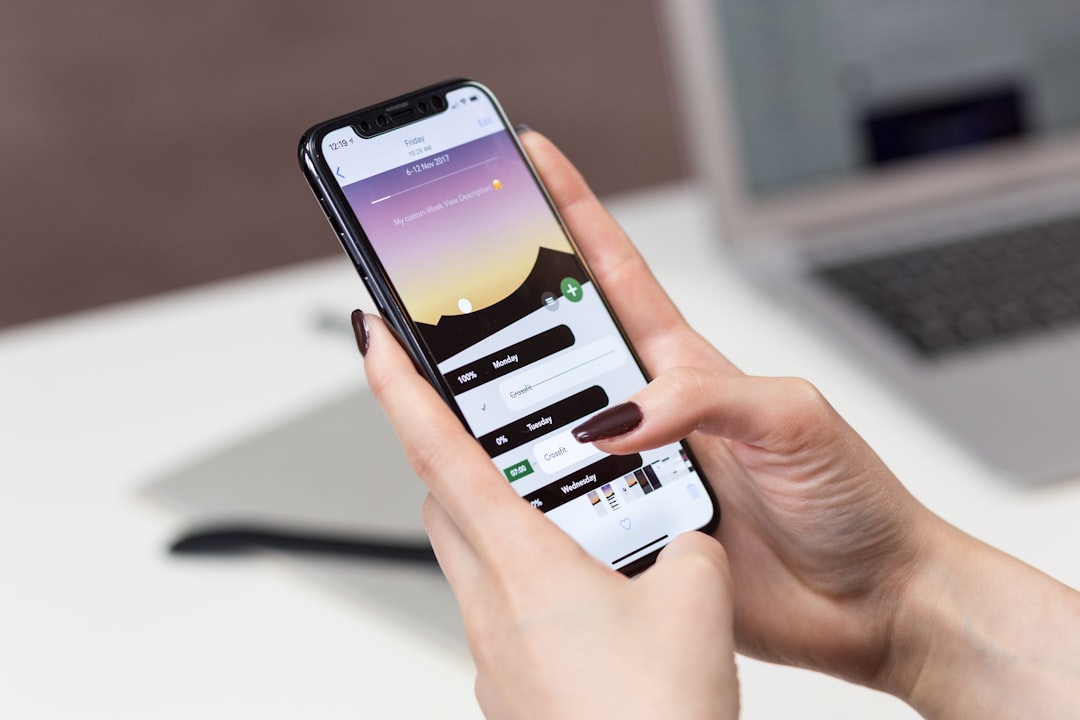
person hand holding iPhone X
Photo: freestocks

We’re used to chat threads flowing smoothly: one message after another, right on time. But sometimes that familiar order breaks down. Messages arrive out of sequence, old replies suddenly end up at the bottom of the screen, and the context of the discussion is lost. That naturally raises concern — it can feel like the connection is dropping or important information is being lost forever.

Why a chat mixes up message order: 5 common causes

When you notice that why messages in chat are displayed out of order, the reason is usually not a bug in the app itself, but in the path the data takes. Main factors:

  • Network delay: With a weak internet connection, data packets arrive at different speeds. The server may receive them in the correct order, while your phone gets them mixed up.
  • Sync failure: If you open the chat on a computer and a phone at the same time, the devices may “agree” with the server about message timing in different ways.
  • Device time: Automatic date and time settings on a phone are critical. If they are off by even a minute, the app may build the feed using incorrect timestamps.
  • Group chat specifics: In group chats, the load is higher. Why messages are lost in group chats is a matter of how the app handles incoming traffic when the conversation is especially active.
  • Loading issues: Sometimes with a poor connection, why blank messages arrive from contacts: the text data did not fully load, and the messenger shows only a technical “bubble” without content.

Quick diagnosis: bug, connection, or device

Before panicking, try to understand the type of failure. If messages are “jumping” across the feed, the problem is most likely time sync or the network. If empty blocks appear constantly, the app cache may be damaged. If you see the message history changing all the time, check whether you are signed in on another device that may be “taking over” update priority.

Scenarios where a conversation breaks into pieces

The most vulnerable to such failures are long one-on-one chats with lots of media, and active group chats. With a weak connection, when the internet keeps disappearing and returning, the phone tries to “load” the missing fragments and inserts them into the current stream. As a result, you may be reading an answer to a question you have not seen in the feed yet.

What to check in 3 minutes: a simple checklist

A calm check can restore order without unnecessary steps:

  • Check the internet: switch from Wi-Fi to mobile data or vice versa.
  • Make sure “Use network time” is enabled in your phone’s date and time settings.
  • Close the app and open it again to refresh the feed.
  • If the problem remains, try clearing the app cache in your phone settings (without deleting the chat itself).

Common mistakes that make the problem seem worse

The main mistake is sending the same message repeatedly or endlessly refreshing the screen. This makes the server process your request again, which only slows down the return to a normal feed. Don’t rush to delete the conversation — if the problem is with the network, the history will simply catch up on its own in a couple of minutes.

How to quickly restore the logic of a conversation and not lose what matters

If you feel that the thread of the conversation is lost, do not try to reconstruct the chronology manually. Just lock in the result: send the other person a short summary of what you understood and ask them to confirm. At Ping, we focus on a clear signal: the user should quickly understand what is happening in the conversation. When information is presented in clear blocks, even with brief network disruptions, the overall meaning of the conversation remains transparent and does not fall apart into details.

Frequently asked questions

Why are messages in chat displayed out of order?

Most often, it is not one error but a combination of causes: from delayed data packets in an unstable network to time synchronization failures on the device itself.

Why are messages lost in group chats?

This happens because of high data flow intensity, where individual fragments may arrive with delays or incorrect timestamps when the signal is weak.

Why do blank messages arrive from contacts?

This is a typical sign that the message data did not fully load from the server because of a poor internet connection or an app cache failure.

What should I check first if the chat starts getting mixed up?

Start with the basics: check internet stability, make sure automatic time settings are enabled on the phone, and restart the app.

How can I avoid losing the meaning of a conversation if messages arrive chaotically?

Don’t panic. Take a short break, let the app synchronize, and then briefly summarize the key points for the other person.

Was this article useful?

Your feedback helps make PingBook more precise.

Share this article

Related articles

Следующие истории PingBook

black and silver digital device
Технологические новости 6 min read

Communication and On-Device Data Processing: What Changes for the User

A fresh official announcement shows that communication and on-device data processing technologies are increasingly shifting smartphone tasks to the user side. We break down how local processing differs from cloud-based, how it affects privacy, and what to check in new features.

Read article
a person holding a cell phone in front of a laptop
Приватность и безопасность 7 min read

Why message text is visible on the lock screen and how to fix it

Why message text is visible on the lock screen and how to fix it: we analyze notification settings, show how to hide previews without losing convenience, and provide a calm checklist in case private correspondence has already been seen by someone.

Read article
All articles

Why message text is visible on the lock screen and how to fix it

Why message text is visible on the lock screen and how to fix it: we analyze notification settings, show how to hide previews without losing convenience, and provide a calm checklist in case private correspondence has already been seen by someone.

a person holding a cell phone in front of a laptop
Photo: NSYS Group

Why message text is visible on the lock screen is usually not a malfunction, but a standard notification setting. Your phone tries to be helpful by showing that a new message has arrived, who sent it, and part of the text so you can react quickly. However, in some situations, this is unnecessary exposure: your smartphone is lying on a table, you’ve handed it to someone else, and personal correspondence is already visible without unlocking.

The good news is that in most cases, this is solved without complicated actions. You don't need to 'fix' the phone, but rather configure how much it shows on the locked screen. Below is a calm plan: first, we will figure out why this happens, then how to hide unnecessary details without losing convenience.

Why your smartphone shows message text immediately

The lock screen and the app itself operate on different levels. A notification can appear on the screen even if access to your correspondence inside the phone is protected by a passcode, fingerprint, or facial recognition. This is normal: the system simply displays a preview so you don't have to open every chat manually.

The problem begins where convenience intersects with privacy. If content display is enabled, anyone who picks up the device can read part of the message. Therefore, the issue usually boils down not to the app, but to notification and privacy settings.

Check three things:

  • whether the notification text is shown on the lock screen;
  • whether the sender's name is visible along with the content;
  • whether behavior differs between various apps and individual chats.

Sometimes a user notices that some messages are hidden while others are visible. This is normal: different apps and different types of notifications can behave differently.

How to hide message content from others on your phone

The most reliable option is not to turn off notifications entirely, but specifically to remove text from the lock screen. Then you will still see that a message has arrived, but the content will not be visible to others.

Look for parameters in the phone's notification section. Usually, there are options like these:

  • show all notifications;
  • hide text on the lock screen;
  • show only the app icon;
  • do not show notifications on the lock screen.

If you need a reasonable balance, choose the intermediate option: the icon and app name remain, while the text is hidden. This way, you don't lose control over incoming messages and don't create unnecessary risk when your phone is lying near other people.

Another important step is the unlocking mechanism itself. A secure passcode, fingerprint, or facial recognition helps not only with system entry but also with daily privacy. The easier it is for a stranger to open the device, the higher the risk of someone accidentally seeing too much.

It is also useful to check the time until auto-lock. If the screen turns off too late, notifications remain in view longer than necessary. It is better to slightly shorten this interval if the phone often lies on your work desk, in a car, or in a bag.

Common mistakes:

  • turning off notifications completely and then missing important messages;
  • configuring text hiding only for one app while forgetting others;
  • looking at the notification icon but not checking the preview;
  • thinking that phone protection and lock screen protection are the same thing.

If you want to find the necessary item quickly, don't look for universal tips by trial and error — it is easier to go through the phone's settings step by step. Usually, the required option is found next to screen lock, notification, or privacy parameters.

What to do if someone reads messages from the lock screen

If you have already noticed that personal text is visible without unlocking, start with a simple checklist:

  1. Check if full notification text display is enabled.
  2. Disable preview for sensitive apps.
  3. Strengthen your device lock passcode.
  4. Check if the screen stays active for too long before auto-locking.
  5. See if notifications are being duplicated on smartwatches or other connected devices.

It is important not to confuse two situations. One thing is the text being visible on the lock screen. Another is someone actually gaining access to your phone. If correspondence opens only after unlocking, the problem is likely in the notifications, not in full device access.

If in doubt, check basic protection: ensure no one knows your code, no unauthorized fingerprint is added, and that overly convenient notification display modes are not enabled on the external screen. A calm check often resolves anxiety faster than endless setting adjustments.

Separately, look at which notifications are actually needed on the lock screen. For urgent service messages, you can leave the preview on, while for personal chats, you can hide the text. Such an approach provides both convenience and control.

If you want to strengthen the protection of your correspondence specifically, it is useful to enable an additional password for access to individual chats or app sections. This does not replace lock screen settings, but adds another layer of peace of mind.

For convenience, keep a simple principle in mind: first decide what should be visible, then who can see it. When these two questions are separated, phone privacy becomes significantly easier to manage.

Your personal PING: how to set up comfortable communication

Notifications should help, not reveal too much. When you set up exactly what is visible on the lock screen once, the phone begins to work more discreetly: it informs you about what is important without making personal correspondence available to accidental glances.

At PING, we emphasize a clear signal: the user should quickly understand what is happening in the conversation. This is the right principle for privacy: a signal is needed, but extra text is not. If a notification helps you stay oriented but doesn't expose you at an awkward moment, then your settings are well chosen.

The main thing is not to search for perfect protection, but to assemble a working minimum: hide previews, strengthen lock mechanisms, check connected devices, and maintain convenience without prying eyes.

Communicate calmly: important messages will remain with you, not in full view of everyone else.

Frequently asked questions

Why is the message text visible on the lock screen if I didn't set it that way?

Because it is a standard notification feature: the system shows a preview for convenience, not because of an error. This is usually changed in privacy and lock screen settings.

How can I hide message content from others on my phone while still being able to view them quickly later?

You can hide text in the notification settings, while leaving only the icon for convenience. It is also better to check the unlocking method — passcode, fingerprint, or face — to ensure you don't lose comfort.

What should I do if someone is reading messages from the lock screen?

First, disable text display in notifications, then check your lock passcode and individual app settings. If no one is getting access to your phone, the problem is usually just the preview on the screen.

PingBook

Следующие истории PingBook

How to organize messaging with colleagues so there is no chaos

How do you organize messaging with colleagues so the chat does not turn into chaos? We break down a simple system: how to write briefly, record agreements, and separate personal from work.

A close-up of a cellphone keyboard
Photo: Samuel Angor
How to organize messaging with colleagues so there is no chaos

Modern work messaging often feels like an endless stream, where important tasks sink under a pile of random remarks. When a team discusses several issues at once, context gets blurred, deadlines slip, and participants lose the thread of the conversation. Chaos in chats is not just inconvenient — it is a real loss of time that makes it harder to work efficiently. Communication needs a system that helps each participant see what is currently a priority, what requires an immediate response, and what has already been resolved.

Why chaos grows in a work chat: 5 signs the system is no longer working

It is fairly easy to tell when work messaging has become chaotic. Most often, it happens gradually, until one day you realize you spend more time searching for the right file than doing the task itself. Signs of chaos in a work chat:

  • One conversation smoothly turns into a discussion of three different projects.
  • Important agreements get lost in the endless feed, and no one remembers who is responsible for what.
  • Participants ask the same questions because they missed earlier messages in the stream.
  • There is no clear deadline: it is unclear when the task should be completed and whether feedback is needed now.
  • The chat turns into a dump of notifications, causing colleagues to ignore even urgent requests.
How to organize messaging with colleagues so there is no chaos: a simple daily structure

For work messaging without chaos to become reality, the process needs structure. Try dividing communication into logical streams: for example, a separate chat or thread for urgent questions, long-term tasks, and informal communication. The main rule is to record the result after every discussion. If you understand how to structure work messaging through simple rules, the amount of information noise drops dramatically.

How to write messages so people reply: a short-response formula

The secret to productive communication lies in clarity. To make sure your message is noticed and answered on time, use a simple formula: goal plus context plus next step. Do not force a colleague to guess what you want from them. Write briefly, specifically, and ask a clear question that requires a definite answer. Often the problem is not a colleague’s inattention, but that the task is phrased too vaguely. How to write messages so they get replied to right away is the foundation to start with when reshaping your digital habits.

How to avoid losing the point of a discussion in a long conversation

In long dialogues, it is important to pause in time and sum things up. If the discussion drags on, do not be afraid to recap what has been said. Record agreements as soon as a decision is made. How to record agreements after a chat discussion is a skill that saves hours otherwise spent on repeating questions and clarifying details.

Why it is important to separate personal and work chats

Mixing personal and work communication creates a constant “always available” state, which leads to quick fatigue. Work communication should have clear boundaries. Separating channels makes it possible to turn off work notifications after the day ends, preserving mental calm. This is not just a matter of convenience — it is a matter of digital hygiene.

Common mistakes in work messaging and how to fix them

The most common mistakes are lack of clarity, combining different tasks into one block of text, and not including a call to action. Many people try to sound polite, but do it so vaguely that the meaning of the request gets lost. How to write briefly and clearly in work messaging is the main answer to chaos in chats.

PING block: how to keep a clear signal in team messaging

Communication tools can either make life more complicated or simpler. At Ping, we focus on a clear signal: the user should quickly understand what is happening in the conversation. Thanks to a structured approach to data delivery and display, team messaging becomes predictable. When the system is tuned for a clear signal and a fast response, chaos simply does not have time to form, because each participant understands their area of responsibility and deadlines.

What to do today: a short checklist for the team

To bring order today, start small:

  • Agree with colleagues where you discuss urgent tasks and where you discuss ongoing ones.
  • Build the habit of writing a summary after every important discussion.
  • If a task takes time, set the deadline right away so you do not create anxiety.
  • Stop sending empty messages (“Hi, are you there?”) — get straight to the point.

Organizing your workspace in the digital world takes discipline, but the result — calm work without unnecessary noise — is worth the effort.

Frequently asked questions

How can you tell that work messaging has already become chaotic?

Signs of chaos include mixed topics, important decisions getting lost in the feed, no deadlines, and questions that no one answers because of information noise.

When is it better to send a message, and when is it better to have a call about work?

If the issue requires a long discussion or you feel the conversation has stretched into dozens of messages without results, it is better to have a call.

How do you write messages so people reply?

Use the formula: goal, context, and one specific next step. Do not overload the text with unnecessary details.

How do you avoid losing the point of a discussion in a long conversation?

Be sure to add interim summaries after each important stage of the discussion and record agreements in a separate pinned message.

Why is it important to separate personal and work chats?

Separation helps maintain work boundaries, lower stress, and avoid being distracted by work during rest time.

PingBook

Следующие истории PingBook

Why someone read your message and didn't reply: should you panic?

Why someone might have read your message and not replied: we break down the real reasons for silence, how not to overthink, and how to write more calmly to get answers without unnecessary tension.

woman in white sweater holding black smartphone
Photo: Clay Banks

Why someone might have read your message and not replied is a question that easily turns a casual conversation into an internal detective story. The "read" status is visible, yet there is no reply. Immediately, theories emerge: they are offended, they lost interest, or they are stalling on purpose. But more often than not, the reality is much simpler.

Silence after reading isn't always about how they feel about you. Sometimes it is about being busy, tired, catching them at an inconvenient moment, or simply a habit of replying later. This is precisely why it is important not to jump to conclusions: digital communication has become fast, but people still live in the offline world—commuting, in meetings, driving, with children, standing in lines, surrounded by noise, and in a hurry.

Why people don't reply to messages: 5 real reasons

When you see the read status with no reply, it is not proof of being ignored. Here are the most common reasons.

  1. Reading on the go. They opened the message between tasks, understood the meaning, but set it aside until they could write a proper reply.
  2. The reply requires effort. People react quickly to a short "yes," but take longer to reply to questions involving choices, dates, or emotions. People often stall if they don't want to reply in a rush.
  3. Notifications and the screen can be misleading. The message might have been seen in a preview, on a locked screen, or in the notification list. Technically, it is already marked as read, but the person still hasn't had the chance to reply.
  4. The recipient is tired of chatting. Sometimes a person simply lacks the energy to continue a dialogue right now. This is not always about you.
  5. Procrastination has become a habit. Many people read to ensure they don't miss something important and then forget to return to the reply. It is awkward, but quite common.

Therefore, to the question of why someone might have read a message and not replied, the honest answer is this: there are more reasons than what is visible from the outside. And far from all of them are unpleasant.

Assessing your state: how to stop overthinking

Anxiety often grows not from the silence itself, but from the constant checking of the status. You look again, then once more, then you start reading between the lines. This is how digital anxiety takes over.

Try this short algorithm:

  • State the fact. The fact is simple: the message has been read, and there is no reply yet.
  • Separate fact from assumptions. "I am being ignored" is a conclusion, not evidence.
  • Take a pause. If the topic is not urgent, do not check the status every 5 minutes. It is better to set a time when you will revisit the matter.
  • Focus on your own tasks. A reply often comes faster when you stop keeping the correspondence at the center of your attention.
  • Compare the importance. If the question is truly urgent, it is better to write again calmly and concretely instead of waiting and guessing.

This approach reduces tension and helps prevent confusing a pause with a rejection. If you are interested in how statuses work, it is useful to look at the material: What do the sent, delivered, and read statuses mean in messages.

How PING helps maintain connection without extra questions

When communication becomes clearer, there are fewer reasons for anxiety. That is the point of clear communication: not forcing someone to guess what you meant and not leaving them waiting without guidance. At PING, we emphasize clear statuses: a user should quickly understand what is happening with their message.

This doesn't eliminate the human factor, but it helps remove unnecessary noise. If a message is short, precise, and unambiguous, it is easier to reply to. If a specific step is needed, it is also visible immediately. The clearer the signal, the less room for speculation.

Another useful guideline is not to mix personal anxiety with the actual content of the dialogue. Sometimes the problem isn't that you weren't heard, but that the question was too general or came at an inconvenient time. For these cases, it is helpful to see how to formulate business-like and calm messages: How to write messages so that they are answered immediately.

Checklist: how to write to get replies faster

If you want to spend less time hanging in anticipation, a polite message format helps more than pressure.

  • Write one thought at a time. Do not hide an important question inside a long paragraph.
  • Immediately indicate what is needed. A reply, a choice, confirmation, time, or a comment.
  • Provide context. A few words about the situation save a lot of time.
  • Avoid an accusing tone. Phrases like "why are you silent" almost always harm the connection.
  • If the question is urgent, say so. Then the person understands the priority.
  • If it is not urgent, give them space. This is also part of digital etiquette.

And yes, sometimes the best answer is not a new text, but a pause. People reply more willingly when they don't feel pressured.

If you are worried not only about a specific reply but also about the general pace of correspondence, it is useful to read about how to distinguish between a regular delay and a real issue with statuses: What it means if a message is delivered but not read.

The calm conclusion is simple: why people don't reply to a message is not always a story about you. It is usually about the moment, fatigue, and the day's priorities. The less we make up stories for someone else, the easier it is to maintain a normal tone and protect your nerves.

And if you want to make your correspondence less of a guessing game, start with clear phrasing, transparent statuses, and a calm pace of communication.

Frequently asked questions

Why did they read it and remain silent if we chat frequently?

Not necessarily. The "read" status means the message was seen, but the person might not have the time, energy, or appropriate moment to reply.

Does this mean I am being ignored?

No, one status is not proof of being ignored. Sometimes people postpone replying, read on the go, or simply do not manage to return to the dialogue.

Can a message appear as read if I haven't opened it?

Yes. Sometimes text is visible in a notification or preview, and the person has already understood the meaning of the message without opening the chat separately.

PingBook

Следующие истории PingBook